
Connecting to a Model
Note: You will first need to connect to a Trerado Core service to retrieve a license key, as Trerado Designer will not start without a valid license key.
The Trerado Designer Start Page:
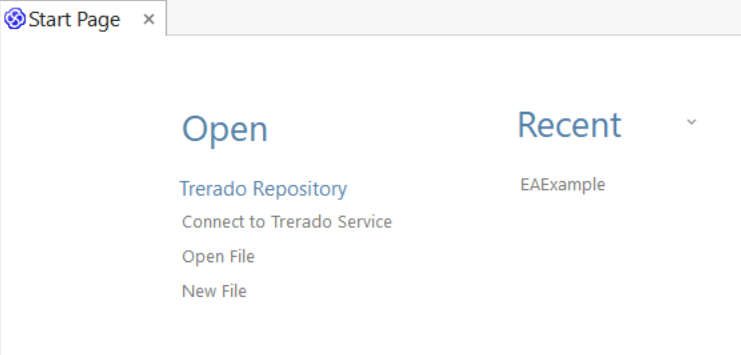
Clicking on 'Connect to Trerado Service' on the Start Page, displays the 'Trerado Service' dialog. By default, the dialog is pre-filled with details for the current connection.
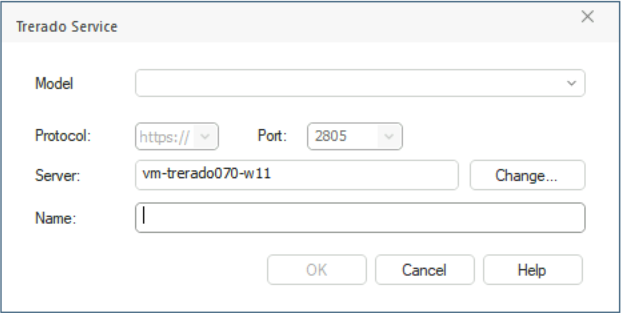
The "Model" drop-down list displays all models available through the current connection. Select a model in the list, then click on "OK" to load that model.
The "Change" button displays the 'Trerado Designer License Registration' dialog, which can be used to specify a different Trerado Core service to access a different list of models. Note however, that you must close any currently open models before you can specify a different Trerado Core service.
Trerado Designer also supports creating and opening QEA files on the user's local file system. For more information on using of QEA files, see the Help Topic File Based Projects.